
~/guides/how-to-add-custom-emotes-to-fivem
Add Custom Emotes to FiveM
-- setup · updated november 2026 · var fivem team
-- stream/ = .ycd files · emote = dict + clip · 2 steps: stream, then register
Adding a custom emote to a FiveM server is two separate jobs. First the animation file has to exist in the game, which means streaming a .ycd from a resource. Then your emote menu has to know about it, which means one entry with a dictionary name, a clip name and a label. This guide covers both, on a free menu and on Var-Emote, plus props, shared emotes, keybinds and the reasons an emote silently refuses to play.
What an emote is, technically
An emote is not a special object in GTA V. It is a regular animation, identified by two strings: an animation dictionary (a container file) and a clip name inside it. A script loads the dictionary with RequestAnimDict, waits for HasAnimDictLoaded, then calls TaskPlayAnim on the ped. An emote menu is a list of those pairs with labels, plus the code that plays them.
The third ingredient is the flag, a number passed to TaskPlayAnim that decides how the clip behaves. Flags are added together: 1 loops the clip, 2 holds the last frame, 16 restricts it to the upper body and 32 leaves the player in control. That is why 49 (1 + 16 + 32) is the usual value for an emote you can walk around with, and 0 plays a clip once and stops. Emote menus hide this behind readable options like loop and movable, but the result is always one of these numbers. The stock pairs are documented in our FiveM animation list, so this page stays on the custom side.
Where custom animations come from
GTA V stores animations in .ycd files, one file per dictionary. A custom animation, whether you bought a dance pack or exported your own from an animation tool, arrives as one or more of these files. FiveM loads them the same way it loads custom cars or clothing: any file placed in a folder named stream inside a started resource is sent to players and registered with the game.
The dictionary name is the file name without the extension. A file called mypack@wave.ycd becomes the dictionary mypack@wave. Clip names live inside the file, and they are not always the same as the file name, so read the pack's readme: a serious creator lists every dictionary and clip. If the readme is missing, open the file in a GTA V archive tool such as OpenIV or CodeWalker to see the clips it contains. Avoid renaming a .ycd you did not make: the name is the dictionary, and a name that collides with a stock dictionary replaces it for every player.
Step 1: stream the animation pack
Create a resource that does nothing except hold the files. Keeping custom animations in their own resource, rather than inside the emote menu, means a menu update never wipes them. The whole thing is a manifest and a stream folder:
resources/
└── [anims]/
    └── my_anims/
        ├── fxmanifest.lua
        └── stream/
            ├── mypack@wave.ycd
            └── mypack@lean.ycd

# fxmanifest.lua | a stream-only resource needs nothing else
fx_version 'cerulean'
game 'gta5'

# server.cfg | start it before the emote menu
ensure my_anims
The stream folder needs no entry in the manifest, it is picked up automatically, and subfolders inside it are fine for sorting packs. Start the resource before your emote menu in server.cfg, then restart the server. Streamed assets are delivered when a player connects, so anyone already online should reconnect before you conclude that a new file is broken. If resources are new to you, the script installation guide covers the folder and ensure basics.
Step 2: test it without a menu
Before touching any menu config, prove that the animation itself works. A bare command removes the menu from the equation: if this plays, streaming is correct and any later failure is a typo in the menu entry.
-- client.lua | /testanim plays the custom clip on yourself (dev testing)
RegisterCommand('testanim', function()
    local dict, clip = 'mypack@wave', 'wave_clip'

    RequestAnimDict(dict)
    local timeout = GetGameTimer() + 5000
    while not HasAnimDictLoaded(dict) do
        if GetGameTimer() > timeout then
            print('anim dict did not load: ' .. dict)
            return
        end
        Wait(0)
    end

    -- flag 49 = loop (1) + upper body (16) + player keeps control (32)
    TaskPlayAnim(PlayerPedId(), dict, clip, 8.0, -8.0, -1, 49, 0.0, false, false, false)
    RemoveAnimDict(dict)
end, false)
The timeout matters. RequestAnimDict on a name that does not exist never completes, so a loop without an exit hangs that thread forever with no error. Printing the dictionary name when the wait expires turns a silent failure into a readable one. RemoveAnimDictafter the call only releases your script's request, the clip keeps playing.
Step 3a: register it in a free emote menu
The free menu most servers run is rpemotes-reborn, the maintained descendant of dpemotes. It is a good resource, with a large library and active maintenance, and you do not need to pay for anything to play a custom emote. It keeps its emotes in Lua tables grouped by type (emotes, dances, prop emotes, shared emotes, walks, expressions), and it provides a place meant for your own additions so they survive an update. The file layout has changed between releases, so follow the readme of the version you installed rather than a path from an old tutorial. The classic entry format looks like this:
-- dpemotes-style entry, the format the rpemotes family grew from
["mywave"] = {
    "mypack@wave",   -- animation dictionary
    "wave_clip",     -- clip name
    "My Wave",       -- label shown in the menu
    AnimationOptions = {
        EmoteLoop = true,
        EmoteMoving = true,
    },
},
The key (mywave) is what players type after /e, and the three strings are the dictionary, the clip and the label. Put the entry in the table that matches its type, restart the menu resource, and the emote appears in the list. If the menu shows it but nothing happens when you pick it, the dictionary or clip string does not match the file: copy both again from the test command that worked.
Step 3b: register it in Var-Emote
Var-Emote is our paid emote menu, and adding an emote to it follows the same logic with named fields instead of positional ones. Emote data lives in shared/data/, one file and one global table per category: DataEmotes, DataDances, DataProps, DataWalks, DataExpressions, DataAnimals and DataShared. Custom .ycd files can go in the resource's own stream/ folder or in a separate resource like the one above.
-- Var-Emote | shared/data/emotes.lua
DataEmotes["mywave"] = {
    dict  = "mypack@wave",
    anim  = "wave_clip",
    label = "My Wave",
    options = {
        loop    = true,
        movable = true,
        prop = {                         -- optional attached object
            model    = "prop_cs_tablet",
            bone     = 28422,
            offset   = {0.0, 0.0, 0.0},
            rotation = {0.0, 0.0, 0.0},
        },
    },
}
Everything under options is optional. The script turns loop, movable and stuck into the animation flag for you, duration stops the emote after a number of milliseconds, and exit_emote chains a second emote when the first one ends. Walk styles and facial expressions use a shorter entry with only anim and label. The full reference is in the Var-Emote adding emote docs.
Props and shared emotes
A prop emote is an animation plus an object attached to a bone of the ped. Under the hood the menu spawns the object and calls AttachEntityToEntity with a bone index, a position offset and a rotation. The two bones you will see in almost every entry are 28422 (right hand) and 60309 (left hand). In the dpemotes-style format those values go in AnimationOptions as Prop, PropBone and PropPlacement. In Var-Emote they go in the prop block shown above, with an optional prop2 for a second object. Expect to tune the offset by trial and error: change a value by a few hundredths, restart the resource, look again. The model has to be a valid object name, which you can look up in the FiveM object list.
A shared (or dual) emote is two entries that point at each other: one clip for the player who starts it, one for the partner, and offsets that place the second ped relative to the first. Custom couple animations are usually sold as a pair of clips for this reason. In Var-Emote each DataShared entry names its counterpart with partner_emote and positions it with a sync block (front, side, height, heading, where a heading of 180 means face to face). The request flow, with a distance check, accept and decline prompts, a timeout and server-side rate limiting, is described in the shared emotes docs.
Bind an emote to a key
FiveM has one correct way to give a script a key: RegisterKeyMapping. It ties a command to a default key and lists it in the GTA V settings under Key Bindings, then FiveM, where each player can change it. To give a custom emote a server-wide default key, wrap it in a command and map it:
-- client.lua | a command with a default key the player can rebind
RegisterCommand('mywave', function()
    ExecuteCommand('e mywave')   -- or call TaskPlayAnim directly
end, false)

RegisterKeyMapping('mywave', 'Play My Wave', 'keyboard', 'F6')
Two things to know. The default key only applies to players who have never had this mapping, so changing F6 to something else later does not move it for existing players. And a server-wide key is rarely what players want: they would rather choose their own emotes. Free menus generally offer a personal binding feature, check the readme for the command. In Var-Emote a player right-clicks any emote in the menu and assigns it to a numpad slot, and the same slots fill the emote wheel. Those slots are registered through RegisterKeyMapping too, so they can be rebound in the game settings. Details are in the keybind docs, and key names are in the FiveM controls list.
Troubleshooting: the emote does not play
A broken emote almost never prints an error, the ped just stands there. Work through these in order:
The .ycd is not streamed: the file is not inside a folder literally named stream, or the resource holding it is not ensured in server.cfg. Check the server console at startup for the resource name.
The dictionary never loads: the dict string in the entry does not match the .ycd file name. HasAnimDictLoaded stays false forever, which is why the test command has a timeout.
The dictionary loads but nothing plays: the clip name is wrong. Clip names are not always the file name, read them from the pack readme or from the file itself.
TaskPlayAnim is called too early: a custom script plays the clip right after RequestAnimDict without waiting for HasAnimDictLoaded. It works on the second try because the dictionary is loaded by then.
It works for you but not for a player: they were connected before the resource was added. Streamed files arrive at connection, have them reconnect.
A stock animation from a recent GTA V update does not play: the server runs an older game build. Set sv_enforceGameBuild to a build that includes that update. Custom streamed files do not depend on this.
The prop floats or sits in the wrong hand: the bone index or the offset is off. Fix the bone first, then the position, then the rotation.
Frequently asked questions
How do I add custom emotes to my FiveM server?
Put the custom animation files (.ycd) in the stream folder of a resource, start that resource from server.cfg, then register each animation in your emote menu with its dictionary name, its clip name and a label. The stream folder makes the animation exist in the game, the menu entry makes it playable by players. Both steps are required.
How do I bind an emote to a key in FiveM?
As a server owner, register a command that plays the emote and attach a default key to it with RegisterKeyMapping. Each player can then change that key in the GTA V settings, under Key Bindings then FiveM. Most emote menus also ship their own binding feature: in Var-Emote a player right-clicks an emote and assigns it to a numpad slot.
Where do I find the anim dict and clip names of a custom animation?
A good animation pack lists them in its readme. If it does not, the dictionary name is the name of the .ycd file without the extension, and the clip names are stored inside the file: open it with a GTA V archive tool such as OpenIV or CodeWalker to read them. For stock GTA V animations, use a published animation list instead.
Why does my custom emote not play in FiveM?
In order of likelihood: the .ycd is not inside a folder named stream, the resource is not started in server.cfg, the dictionary or clip name in the menu entry has a typo, or the script calls TaskPlayAnim before the dictionary has finished loading. If the animation comes from a recent GTA V update rather than a custom file, the server also has to enforce a game build that contains it.
Can players add their own emotes to a FiveM server?
No. Custom animation files are streamed by the server, so only someone with access to the server resources can add one. What players can do is personal: bind existing emotes to keys, fill an emote wheel, save favourites or build playlists, depending on the emote menu the server runs.
-- var-fivem.com
Custom emotes, in a menu players enjoy
Var-Emote takes the same dict and clip entries and puts them behind a React NUI menu with an emote wheel, numpad slots, playlists, shared emotes and 3D placement. ESX, QBCore and Standalone, in Escrow, Partially Open and Open Source variants.
Related: FiveM emote list · FiveM animation list · How to add cars to FiveM
Keep reading
- referenceFiveM Emote List: Emotes, Dances & CommandsEvery emote category explained: dances, prop and shared emotes, walk styles, keybinds, the emote wheel and chat commands.read
- referenceFiveM Animation List: Anim Dicts & Clip NamesCurated reference of 64 verified FiveM animation dict and clip pairs for TaskPlayAnim, grouped by use, with Lua snippets, scenarios and how to find any of the 20,000+ dictionaries.read
- setupHow to Install a FiveM Script: Escrow, Keymaster & DependenciesThe full install path for a FiveM script: download the asset from the Cfx.re Portal, drop it in resources/[category]/, ensure it in server.cfg in the right order, wire ox_lib and oxmysql, import the SQL, add the items, and fix the seven errors that break every first attempt.read
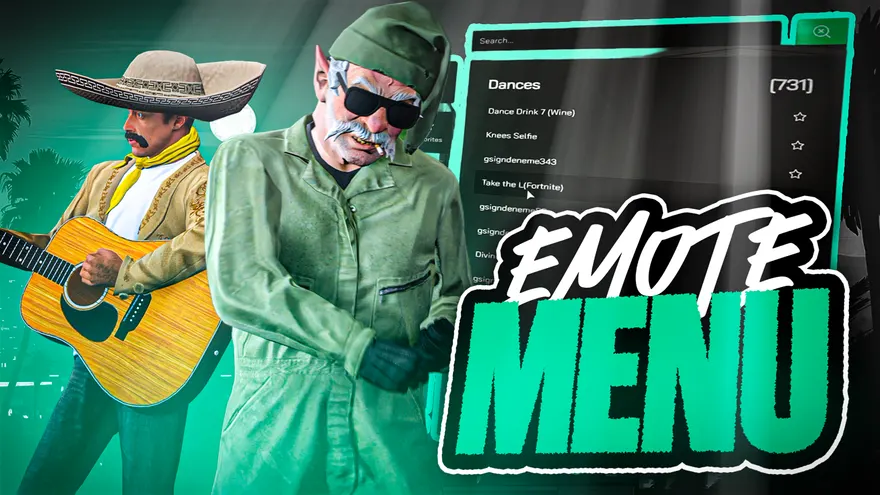 Var-EmoteThe FiveM emote menu script built on this library: an 8-slot emote wheel, shared emotes, playlists and a screenshot mode.View the script